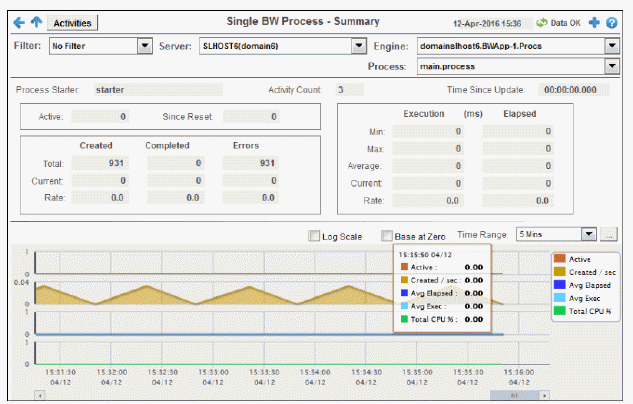
Detailed performance metrics and alert status for a single BW process. Select a server, engine and process from the drop-down menus. The background color of the display is red when the selected engine is stopped.
|
Filter By: The display might include these filtering options: |
||||
|
|
Filter: |
Choose a filter to show data for in the display. By default, the Filter: drop-down menu only contains the No Filter option. To create your own filtering options, see Creating Customized Filters in the User’s Guide. |
||
|
|
Server: |
Choose a server to see metrics for. |
||
|
|
Engine: |
Choose a server to see metrics for. An engine is not running when the engine name is appended with (X). |
||
|
|
Process: |
Choose a process to see metrics for. |
||
|
Process Starter |
Name of the process starter for the process. |
|||
|
Activity Count |
Number of activities defined for this process. |
|||
|
Time Since Update |
Time since the last update to file of statistics. |
|||
|
|
Active |
Number of active instances for this process definition. This number is calculated using the Hawk method named GetProcesses. This method returns information about process instances that are active at the time of update. The value here displays the current total count of all active instances discovered for this process definition. The trend below displays the same value over time. |
||
|
|
Since Reset |
Number of activity executions that have completed since the last reset of the statistics. This is the number retrieved from the Hawk method named GetProcessDefinition which returns ExecutionCountSinceReset. |
||
|
Execution Counts Most recent execution counts for this process. |
||||
|
|
Created |
Total |
Number of process instances created for this process definition. |
|
|
|
|
Current |
Number of process instances created this update cycle. |
|
|
|
|
Rate |
Number of process instances created per second. |
|
|
|
Completed |
Total |
Number of process instances successfully completed. |
|
|
|
|
Current |
Number of process instances successfully completed this update cycle. |
|
|
|
|
Rate |
Number of process instances successfully completed per second. |
|
|
|
Errors |
Total |
Number of errors accumulated by all process instances. |
|
|
|
|
Current |
Number of errors accumulated this update cycle. |
|
|
|
|
Rate |
Number of errors accumulated per second. |
|
|
Execution (ms) Elapsed Execution and elapsed times in milliseconds for this process. |
||||
|
|
Min |
Shortest time of any process instance. |
||
|
|
Max |
Longest time of any process instance. |
||
|
|
Average |
Average time across all successfully completed process instances. |
||
|
|
Current |
Time accumulated this update cycle. |
||
|
|
Rate |
Time accumulated per second. |
||
|
Trend Graphs
|
||||
|
|
Log Scale |
Select to enable a logarithmic scale. Use Log Scale to see usage correlations for data with a wide range of values. For example, if a minority of your data is on a scale of tens, and a majority of your data is on a scale of thousands, the minority of your data is typically not visible in non-log scale graphs. Log Scale makes data on both scales visible by applying logarithmic values rather than actual values to the data. |
||
|
|
Base at Zero |
Select to use zero (0) as the Y axis minimum for all graph traces. |
||
|
|
Time Range |
Select a time range from the drop down menu varying from 2 Minutes to Last 7 Days, or display All Data. To specify a time range, click Calendar 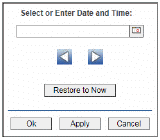
By default, the time range end point is the current time. To change the time range end point, click Calendar Use the navigation arrows Click Restore to Now to reset the time range end point to the current time.
|
||
 .
.  and select a date and time from the calendar or enter the date and time in the text field using the following format:
  to move forward or backward one time period. NOTE: The time period is determined by your selection from the