 bar, where 2 is the highest Alert Severity:
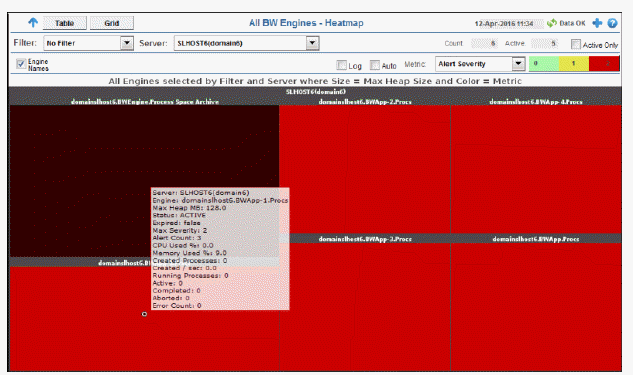
Quick view of BW5 Engines status for the selected Filter and Server. Each rectangle in the heatmap represents an engine. Rectangle size represents Max Heap Size and the color represents the most severe value in the heatmap rectangle is shown for the selected Metric. By default, the maximum Alert Severity is shown:
Values range from 0 - 2, as indicated in the color gradient bar, where 2 is the highest Alert Severity:
 Red indicates that one or more metrics exceeded their ALARM LEVEL threshold.
 Yellow indicates that one or more metrics exceeded their WARNING LEVEL threshold.
 Green indicates that no metrics have exceeded their alert thresholds.
Mouseover to see the following performance metrics:
Server: Server agent name.
Engine: Engine name.
Max Heap MB: Maximum heap allocated to this engine for the JVM.
Status: ACTIVE, STOPPED or LIMITED.
Expired: When checked, data has not been received from this host in the specified amount of time.
Alert Count: Number of current alerts
CPU Used %: Percent of server CPU used by engine.
Memory Used %: Percentage of allocated memory currently consumed by this engine from within the JVM. Equal to the value of: (100*UsedBytes) divided by MaxBytes. NOTE: Percent used is Long.
Created Processes: The total number of processes created.
Created / sec: The number of processes created per second.
Running Processes: The number of currently running processes.
Active: The number of currently active processes.
Completed: The total number of completed processes.
Aborted: The total number of aborted processes.
Error Count: The total number of errors.
Click on a node to drill down to the Single Engine Summary display to look at number of processes running, threads, history of memory utilization and other performance metrics for a specific engine. Mouse-over nodes to view details about engine performance and status.
|
Filter By: The display might include these filtering options: |
||||
|
|
Filter: |
Choose a filter to show data for in the display. By default, the Filter: drop-down menu only contains the No Filter option. To create your own filtering options, see Creating Customized Filters in the User’s Guide. |
||
|
|
Server: |
Choose a server to show data for in the display. |
||
|
|
Count: |
The total number of engines in the display. |
||
|
|
Active |
Number of engines currently active. |
||
|
|
Active Only |
If selected, only engines with a status of ACTIVE are displayed. Otherwise, if deselected, all engines for the given Filter/Server selection are displayed. |
||
|
|
Engine Names |
Select this check box to display the names of the engines above their respective rectangles in the heatmap. |
||
|
|
Log |
Select to enable a logarithmic scale. Use Log Scale to see usage correlations for data with a wide range of values. For example, if a minority of your data is on a scale of tens, and a majority of your data is on a scale of thousands, the minority of your data is typically not visible in non-log scale graphs. Log Scale makes data on both scales visible by applying logarithmic values rather than actual values to the data. |
||
|
|
Auto |
Select to enable auto-scaling. When auto-scaling is activated, the color gradient bar's maximum range displays the highest value. NOTE: Some metrics auto-scale automatically, even when Auto is not selected. |
||
|
|
Metric |
Choose a metric to view in the display. |
||
|
|
|
Alert Severity |
The maximum level of alerts in the heatmap rectangle. Values range from 0 - 2, as indicated in the color gradient
|
|
|
|
|
Alert Count |
The total number of critical and warning alerts in the heatmap rectangle. The color gradient |
|
|
|
|
CPU Used% |
The percent (%) CPU used in the heatmap rectangle. The color gradient |
|
|
|
|
Memory Used% |
The percent (%) memory used in the heatmap rectangle. The color gradient |
|
|
|
|
Active Processes |
The number of currently active processes in the heatmap rectangle. The color gradient |
|
|
|
|
Running Processes |
The number of currently running processes in the heatmap rectangle. The color gradient |
|
|
|
|
Created Processes |
The number of created processes in the heatmap rectangle. The color gradient |
|
|
|
|
Created/sec |
The number of created processes in the heatmap rectangle, per second. The color gradient |
|
|
|
|
Error Count |
The total number of errors in the heatmap rectangle. The color gradient |
|


